I O M a c h i n e
L F T M a i l
User Manual

Table of Contents
|
Chapter 1 |
Getting Started – what is LFTMail?
IOMachine LFTMail Plug-in for Microsoft Outlook allows you to send large attachments right from Outlook Email Client.
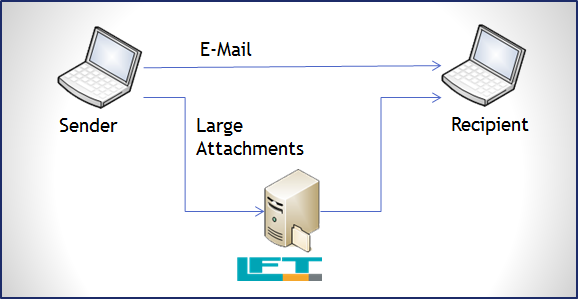
For example, if you want to send a 50MB attachment, you may not be able to send it via regular email since your email quota and your recipients’ email quota may not allow such a large attachment to pass through the email systems.
LFTMail solves this problem and enables you to send large attachments to anyone.
|
1 |
LFT Mail automatically detaches and compresses large attachments from your Outlook Email and inserts an encrypted hyperlink for recipients to download the file later. This process helps move email faster since large attachments are not present in email queues waiting to be processed by the mail system.
|
Chapter 2 |
Send Files from Outlook Email
LFTMail starts up with Outlook and runs within your system tray. This service is designed to continue to process file transfers already in queue even if the Outlook client is shutdown.
When preparing to send a new email and if the attachment file is more than the specified threshold, LFTMail prompts to either allow upload of the file through the LFT server or directly as a normal email attachment by Outlook through your e-mail server. In both cases the email and attachment will be sent to the intended recipient but if the attachment is sent through LFT, it will be stripped from the memo and formatted into a hyper link for later download by the receiving end.
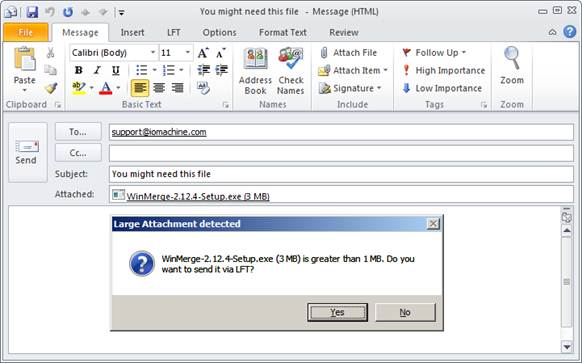
Click on the Yes button to send the attachment via LFTMail server.
|
1 |
Outlook Mail may have a system wide message transfer restriction.
If you encounter such limitations, please use the LFTMail Postcard App. See
next page for how to use the Postcard App.
Send File via Postcard App
LFTMail adds a special button in outlook. When you click on this “Send Large Files” button in Outlook it starts the Postcard App for sending as many as six files at a time.
Please note that there is no limitation on file size you can send via Postcard App. You are only limited by the Operating system you are using and amount of disk space you have in your computer.
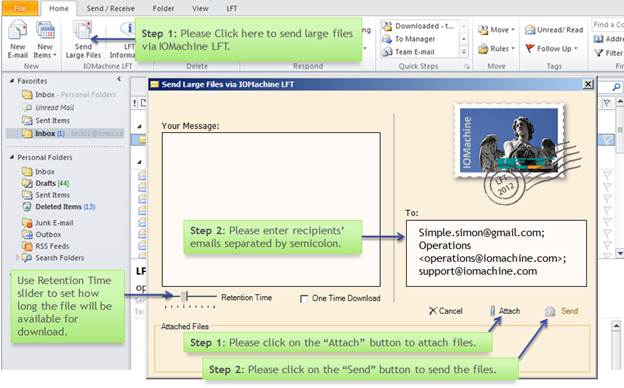
In this Postcard App, you could set options like “Retention Time” to make sure that files are available till a certain date, and “One Time Download” which will add a restriction to the uploaded files that will only allow recipient/s to download the file once.
|
1 |
LFTMail Postcard App is a great way to send very large files. This app works independently of any Email system and it provides a secure and alternate path to Attachment delivery for anyone outside your organization.
Send Files via LFT Upload Center
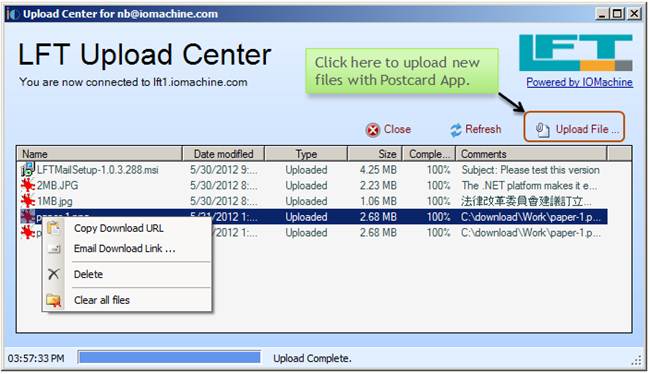
You could send files directly from LFT Upload Center. In your taskbar, you can right click on the IOMachine icon to open LFT Upload Center.
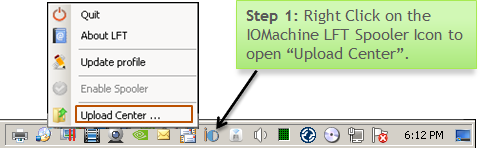
LFT Upload Center shows you a list of files in LFT. You could either click on the “Upload File …” button to start the Postcard App or right click on a file which was uploaded to LFT and Email the download link to recipients.
|
1 |
LFT Upload Center is a great way to see what is being
uploaded. . You can also right click on the filename and copy the download
URL to send it to other recipients.
Send Files via Right-Click
LFTMail adds
a context menu for every file. When you right click on a file and go to the Send
To menu, you will see an option to start LFT Uploader App. When you click on
the LFT Uploader Menu, it will pop up a small window where you could put in
E-Mail addresses. For multiple addresses separated with
commas or semicolons. Then just hit the send button to upload the file.
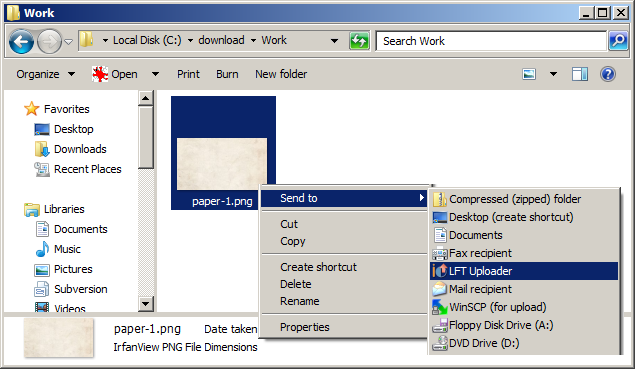
Recipients will be notified after the files are fully uploaded and ready to be downloaded.

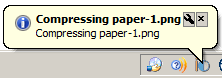
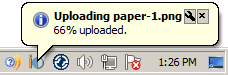
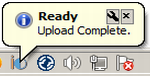
While files are uploading, you will see bubble message showing status time to time. LFTMail compresses the files, then uploads them and upon competition, notifies recipients about availability of new files.
|
|
|
|
Send Files through Browser
LFTMail has a web interface to send files directly from your browser.
Please login to http://lft.insidemedia.net. from your browser and choose your region first.
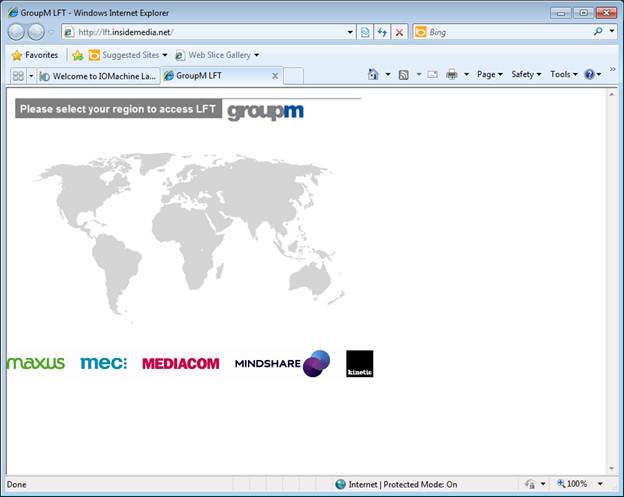
When you click on the region, it will take you to the LFT server dedicated to that region.
|
1 |
There are three LFT servers located in New York, London and Hong-Kong. Please choose the region closest to you to get optimum performance.
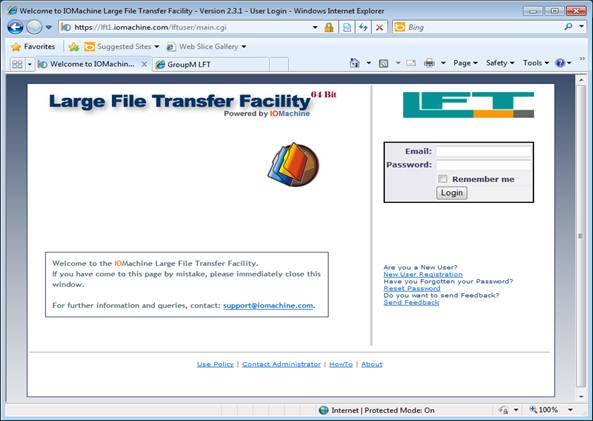
Enter your registered email address and password to login to LFT and then you can upload files from the browser directly to the LFT Server.
When upload is completed, your recipients will be notified about availability of new files in LFT Server.
|
1 |
There are browser limitations against file size uploaded through the Web version of LFTMail. You can safely upload up to 500 MB file but if you need to send out larger files please use LFT Postcard App.